
- Create a new project in the console.cloud.google.com portal (or an existing project can be used)
- APIs and Services will need to be enabled
- Using the search bar at the top search for APIs and Services
- Select Enabled APIs and Services on the left navigation menu
- Select Enable APIs and Services to open up the API library
- Search for the following APIs in the API library:
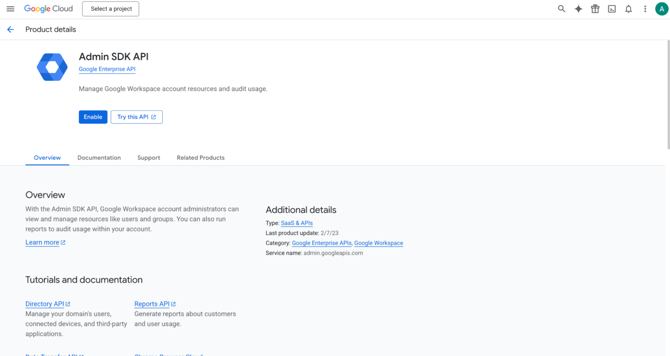
- Admin SDK API
- Select the Admin SDK tile
- Select Enable to turn the API on
- Admin SDK API
-
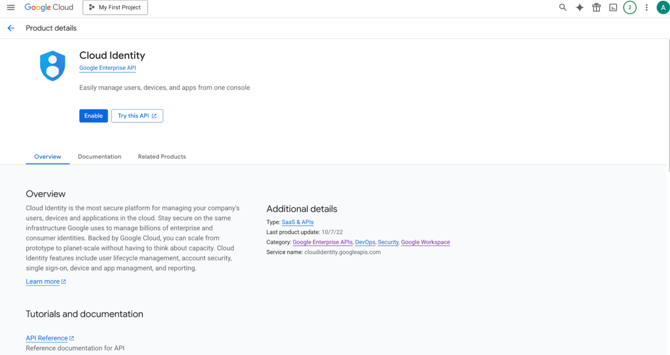
- Cloud Identity API
- Select the Cloud Identity API tile
- Select Enable to turn the API
- Cloud Identity API
- Search for the following APIs in the API library:
- Navigate to IAM and admin > Service Accounts
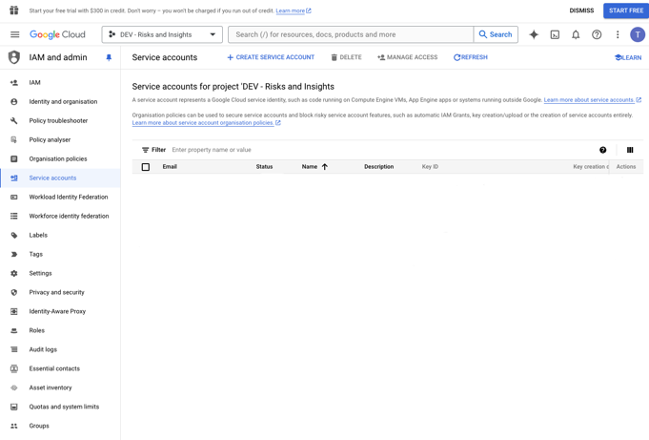
- Click Create a service account
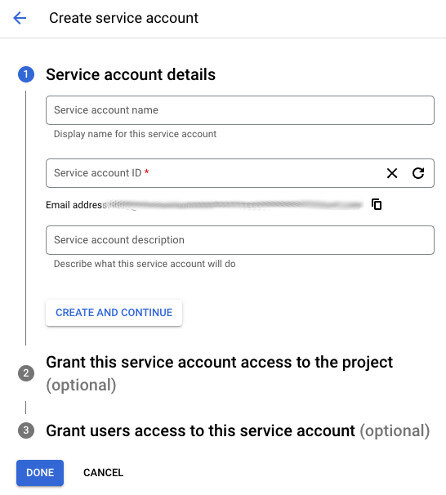
- Name the service account and specify an ID
- Open the new service account, navigate to Keys and select Add Key > Create a new key
- Set the key type to JSON
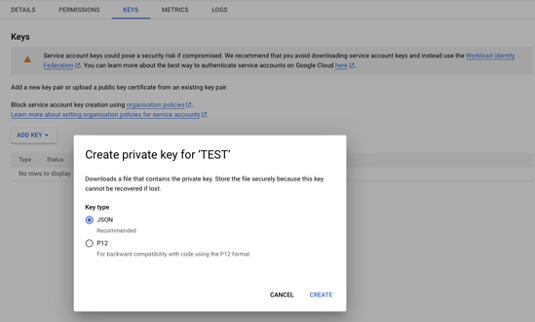
- Select Create
- The JSON file will download automatically
- The service account will need to be assigned API permissions/scopes in GWORK
- Login to admin.google.com
- Navigate to > Security > Access and data control > API Controls > Manage Domain-Wide Delegation
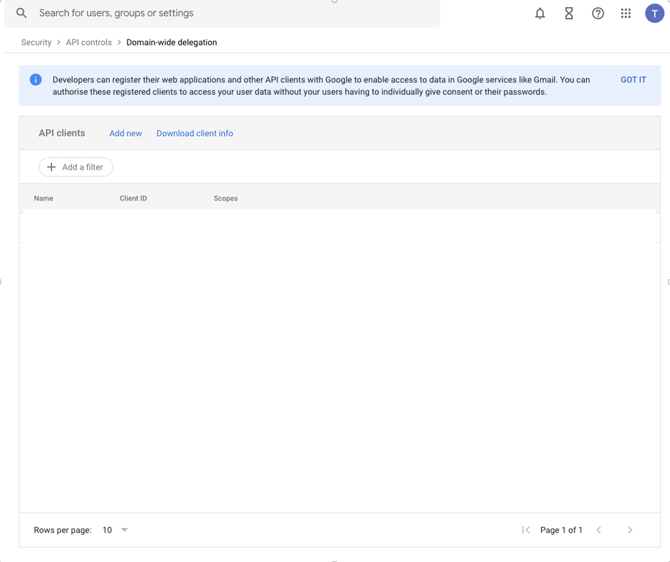
- Select Add new to define the scopes
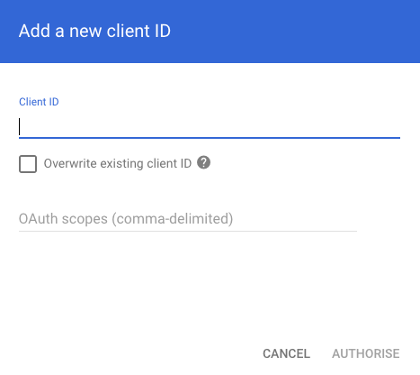
- Set the Client ID to the Unique ID of the service account
- Set the OAuth scopes to:
- Copy the below and paste it into the OAuth scopes:
https://www.googleapis.com/auth/admin.directory.user.readonly,https://www.googleapis.com/auth/admin.directory.group.readonly,https://www.googleapis.com/auth/admin.directory.group.member.readonly,https://www.googleapis.com/auth/admin.directory.domain.readonly,https://www.googleapis.com/auth/admin.directory.orgunit.readonly,https://www.googleapis.com/auth/admin.directory.customer.readonly,https://www.googleapis.com/auth/admin.directory.device.mobile.readonly,https://www.googleapis.com/auth/admin.directory.device.chromeos.readonly,https://www.googleapis.com/auth/admin.directory.rolemanagement.readonly,https://www.googleapis.com/auth/admin.reports.audit.readonly,https://www.googleapis.com/auth/apps.groups.settings,https://www.googleapis.com/auth/gmail.settings.basic,https://www.googleapis.com/auth/drive.readonly,https://www.googleapis.com/auth/calendar.readonly,https://www.googleapis.com/auth/ediscovery.readonly,https://www.googleapis.com/auth/chat.spaces.readonly,https://www.googleapis.com/auth/apps.alerts,https://www.googleapis.com/auth/script.deployments.readonly,https://www.googleapis.com/auth/cloud-identity.policies.readonly,https://www.googleapis.com/auth/cloud-identity.groups.readonly -
This is the above list in human readable format
-
https://www.googleapis.com/auth/admin.directory.user.readonly
-
https://www.googleapis.com/auth/admin.directory.group.readonly
-
https://www.googleapis.com/auth/admin.directory.group.member.readonly
-
https://www.googleapis.com/auth/admin.directory.domain.readonly
-
https://www.googleapis.com/auth/admin.directory.orgunit.readonly
-
https://www.googleapis.com/auth/admin.directory.customer.readonly
-
https://www.googleapis.com/auth/admin.directory.device.mobile.readonly
-
https://www.googleapis.com/auth/admin.directory.device.chromeos.readonly
-
https://www.googleapis.com/auth/admin.directory.rolemanagement.readonly
-
https://www.googleapis.com/auth/admin.reports.audit.readonly
-
https://www.googleapis.com/auth/apps.groups.settings
-
https://www.googleapis.com/auth/gmail.settings.basic
-
https://www.googleapis.com/auth/drive.readonly
-
https://www.googleapis.com/auth/calendar.readonly
-
https://www.googleapis.com/auth/ediscovery.readonly
-
https://www.googleapis.com/auth/chat.spaces.readonly
-
https://www.googleapis.com/auth/apps.alerts
-
https://www.googleapis.com/auth/script.deployments.readonly
-
https://www.googleapis.com/auth/cloud-identity.policies.readonly
-
https://www.googleapis.com/auth/cloud-identity.groups.readonly
-
- Copy the below and paste it into the OAuth scopes:
- Select Authorise to save the scopes
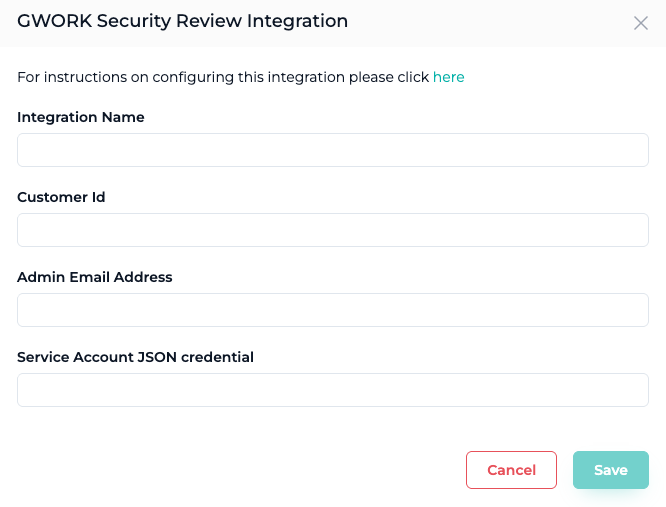
- Cyberknowledge requires the following for the Integration
- Customer Id (Can be found under Account > Account Settings > Profile)
- Admin Email Address (Super Admin of the tenant)
- JSON payload
- Login to the Cyberknowledge console
- Navigate to Integrations > Integration Gallery
- Select Google Workspace
- Name the Integration and fill in the details
- After the integration is successfully added the integration will become Active but remain will remain in a Pending state until a GWORK Security Report is Generated through the Assistant Module.
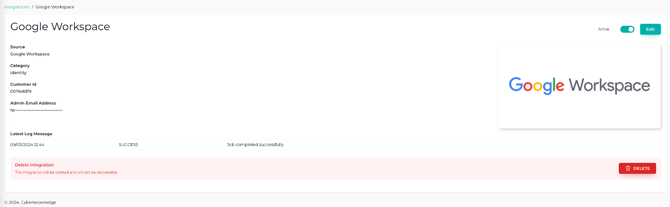
Please note that the data captured will only be available from the GWORK Security Review Report that is generated from the Assistant module.
Additionally Cyberknowledge will connect to Google Workspace when a report is requested only.