
- Login to your Strata Cloud Manager portal
- Navigate to System Settings > Identity and Access Management > Access Management
- Click + Add Identity
- On the Add New Identity modal:
- Set the Identity Type to: Service Account
- Name the service account
- Click Next
- Copy Client ID
- Copy Client Secret
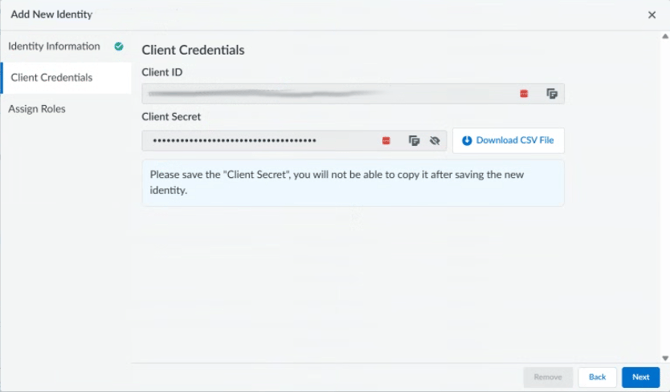
- Click Next
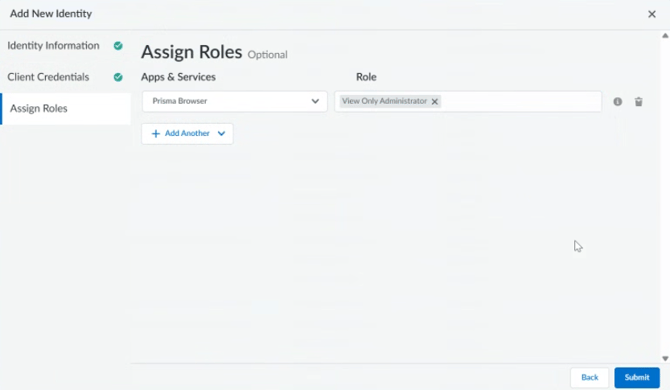
- Set the Apps and Service to: Prisma browser
- Set the role to: View only Administrator
-
- Click Submit to create the Service Account
- Cyberknowledge will also require the Tenant Service Group ID (TSG ID), this can be found on the Access Management Page above the table.
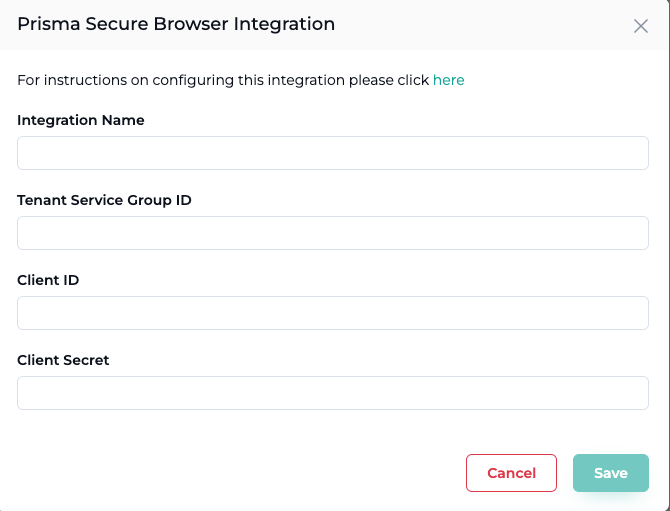
- Cyberknowledge requires the following for the integration
- Tenant Service Group ID (found on the Access Management Page)
- Client ID (from step 4.d)
- Client Secret (from step 4.e)
- Navigate to Integrations > Integration Gallery
- Select Prisma Secure Browser
- Name the Integration and fill in the details captured from Step 6
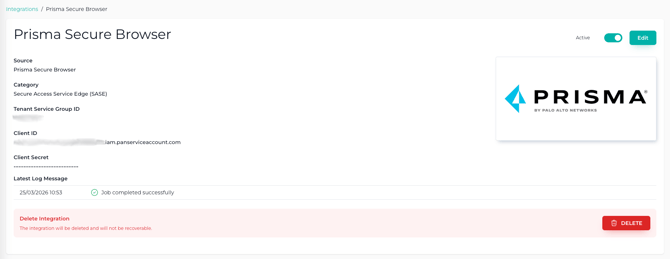
- After the integration is successfully added the endpoint and people table will begin to populate with data and integration will display as follows
Please note that the trending graphs on the Overview, People and Endpoint pages are updated nightly.
This ensures data is captured consistently at the same time each night, providing accurate and reliable trend information. Over time, these graphs will reveal meaningful patterns and trends.